Import large product feeds

WooCommerce XML and CSV Product Feed Import

Supplier feeds give you raw data. ShopWriter turns it into a fully optimized WooCommerce store. Paste your feed URL, map your fields once, and import thousands of products in minutes. Then let the bulk content engine do the rest, unique descriptions, meta tags, and alt text generated for every product automatically.

No writers. No copy-paste. No switching between tools. Everything you need, in one dashboard, one plug-in.

LinkedIn
Instagram
YouTube

Product importer in action

Built for large feeds

Most import tools struggle or fail with files beyond a few hundred megabytes. ShopWriter’s chunked download and SQLite indexing approach makes it easy to work with feeds over 5 GB, giving you full control over what gets imported without putting strain on your server.

feeds supported

Category Mapping

Map the category structure of your product feed to the category structure of your own webshop. This ensures all products are automatically linked to your existing categories — no duplicate categories, no manual cleanup. It’s simple: on the left, you’ll see the categories from the product feed. On the right, each feed category has a dropdown where you select the matching category from your webshop. Once mapped, every imported product lands exactly where it belongs.

Attribute Mapping

Map feed attributes directly to your webshop attribute structure.
Side-by-side view: feed on the left, webshop on the right.
ShopWriter links them automatically.

A guide of the product importer

Upload or enter a URL

It shows the first screen of the import process, where the user either uploads a product feed file or enters a URL. This is the entry point of the flow.

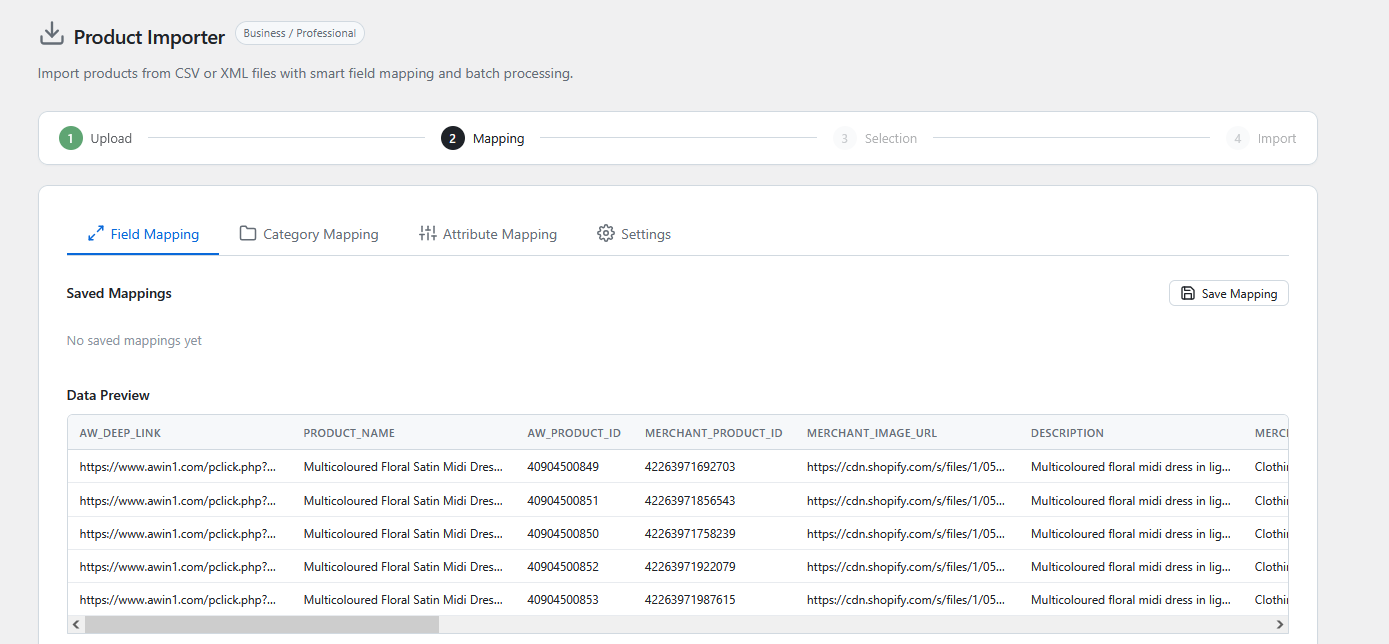
Preview

It shows a data table with the first rows of the imported feed, giving the user a glimpse of the file’s contents after it has been downloaded and indexed.

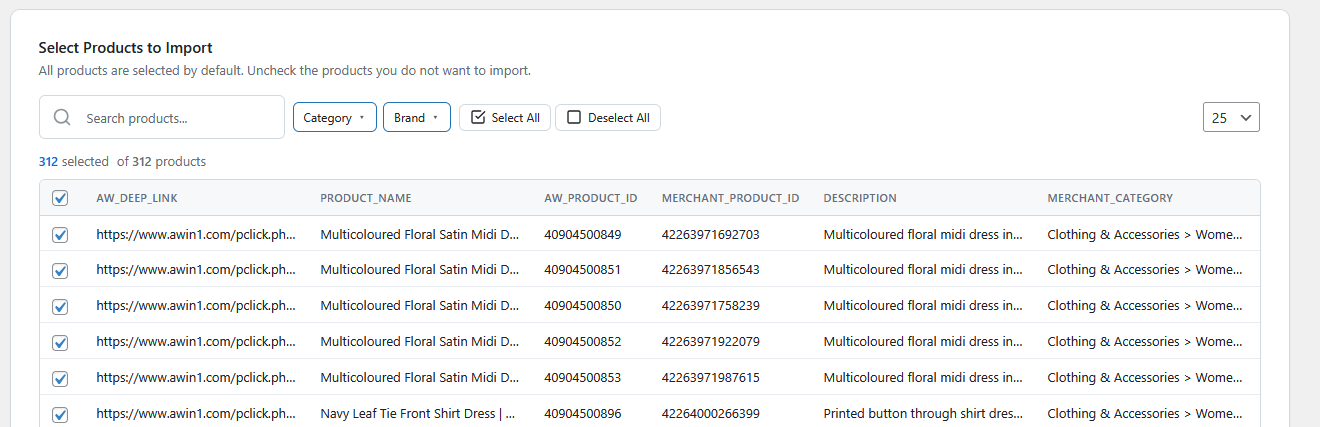
Product selection

It shows how users can narrow down their import by entering a search term (keyword) or selecting one or more categories and/or brands. By filtering, we give more control over the import.

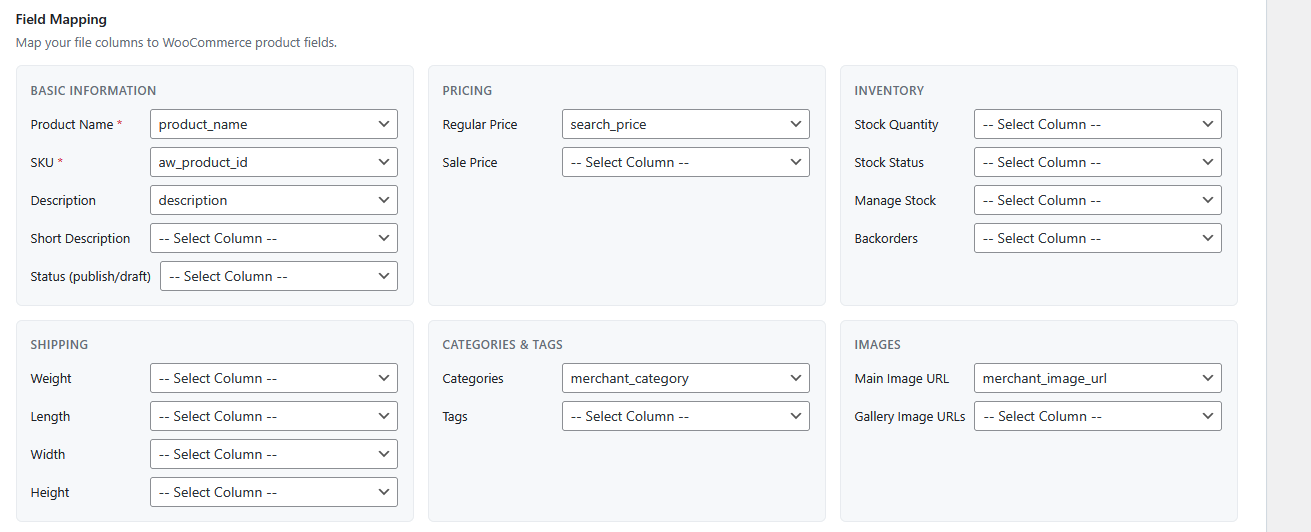
Field mapping

It shows the interface where feed fields are mapped to the corresponding WooCommerce product fields, such as title, price, description, and SKU.

Category mapping

It shows the side-by-side mapping interface, with feed categories on the left and WooCommerce categories in a dropdown on the right. The user just needs to connect their feed categories with the WooCommerce categories.

Image settings

It shows the settings screen where the user chooses whether product images should be downloaded locally or linked as external images. For the affiliates, we recommend you to link as external images to save space and you don’t have to host yourself and is better for copyrights

Settings

It shows the configuration screen where the user sets whether products should be imported as regular WooCommerce products or as affiliate products. On case if the product are from affiliate links, the user can past their affiliate link and choose the text for the button.

Brief

Import XML/CSV WooCommerce Product Feeds To Your Webshop

The ShopWriter Import feature lets you automatically import products
into WooCommerce based on a keyword, category, or feed source.
Designed to automate product management so your webshop grows
with minimal manual work.
After importing, use ShopWriter to generate unique descriptions, meta
tags, and image alt text — turning generic supplier data into
search-ready product pages

This feature is especially powerful for:

Affiliate websites
Dropshipping websites
Webshops that use supplier feeds

Imagine having a plugin that handles everything for you. You simply configure your feed, select which products you want to import, and map the required fields. From that moment on, your products and stock levels can be updated automatically.

After importing, you can use ShopWriter to generate unique product descriptions, meta tags, and image alt tags. Everything you need in one plug-in!  This allows you to create a fully optimized webshop or website that can generate revenue through affiliate programs, dropshipping, or your own online store.

How the ShopWriter Import Feature Works

The product feed can be uploaded as an XML or CSV file and imported into WooCommerce using WP All Import. ShopWriter adds an advanced automation layer on top of this process, making product imports and updates fully automatic.

The ShopWriter Import feature is available for users with a valid: ShopWriter Business or Professional Plan.

With this feature, you can build a fully automated WooCommerce store that imports products, keeps them updated, and optimizes them for search engines automatically.

Feed Settings

Users can configure detailed settings for each XML or CSV feed.

These include:

  • Selecting which fields from the feed should be used
  • Automatically detecting feed fields when loading large files would take too long
  • Choosing whether to use standard featured images or external featured images
  • Running imports once manually or automatically via cron jobs
  • Automatically adding, updating, or removing products

Users can also map feed fields directly to WooCommerce product fields, including:

  • Product title
  • Product description
  • Short description
  • Price
  • Sale price
  • Product type (simple or external/affiliate product)
  • External product URL
  • External product button text
  • Stock quantity
  • SKU
  • GTIN
  • Brand (linked to an attribute or taxonomy)
  • Featured image
  • Product gallery images
  • Product category
  • Attributes

If external featured images are enabled, the user can link the feed image field directly to the featured image.

Smart Product Management

The ShopWriter Import feature also includes advanced product management options.

Users can configure:

  • Automatic product updates when feed data changes

  • Selective updates, for example updating only price and stock

  • Automatic product removal when items are no longer present in the feed

  • 301 redirects when products are removed

For this process, ShopWriter keeps track of which import created each product. This allows the system to compare the current feed with existing products and determine whether products should be updated, removed, or left unchanged.

XML Feed Management

Users can configure one or multiple XML feeds.

For each feed, they can:

  • Choose the specific import settings to use

  • Provide a feed URL

  • Upload the feed manually

This flexibility makes it easy to work with multiple suppliers, affiliate networks, or data sources.

Importing Products

Imports can be executed in two ways.

Manual Import

Users can start an import manually from the plugin interface. During the process, the plugin shows the live status of the import, so users can see exactly what is happening.

Automated Import (Cron Jobs)

Imports can also run automatically via cron jobs, keeping the webshop fully synchronized with the product feed.

During an import:

  • New products are automatically created

  • Existing products are automatically updated according to the selected fields

  • Removed products are deleted from WooCommerce

  • If configured, a 301 redirect is automatically created for removed products

How the Import Feature Works

ShopWriter’s import feature is built to handle product feeds of any size — including files larger than 5 GB containing over a million products. Here’s how it works, step by step.

1. Enter the URL
Paste the URL of your product feed. ShopWriter supports all common feed formats and fetches the file directly from the source.

2. Chunked downloading
The feed is downloaded in small chunks rather than as a single file. This makes the download process highly reliable — large files won’t time out or fail halfway through, even on slower connections.

3. Indexing with SQLite
Once downloaded, the feed is indexed into a local SQLite database. This may take a moment for very large files, but it’s what makes ShopWriter so powerful at scale. After indexing, you get a full preview of all columns in the feed and can easily filter the products you want to import — by keyword, category, brand, or any combination of these.

4. Field mapping
With the feed indexed, you map the feed’s fields to the corresponding fields in your WooCommerce store. This is where you connect product titles, prices, descriptions, images, and attributes to the right places.

5. Configure, select, and import
Adjust any remaining settings, finalize your product selection, and start the import. ShopWriter processes your selection and creates fully formatted WooCommerce products — automatically.


Benefits

Why ShopWriter?

Simple

Easy Onboarding

No need for OpenAI knowledge or API configuration

01
Faster

Time Saving

Save hours of manual work every
week

02
Optimized

Higher Rankings

Rank higher in Google with unique, optimized content

03

Ready to import your catalog?

Connect your XML or CSV feed and start generating SEO-optimized products in minutes.

Ready to save hours
of manual writing and
boost your webshop’s SEO?

Get started with ShopWriter from $ 29,99 per month

Trusted by 12.000+ Bold Startups & Modern Brands